Beyond the UI: Understanding Modern Frontend Engineering · Part 2
New to this series? Start with Part 1
Reflow and Repaint Explained: Why Some UI Updates Are Expensive
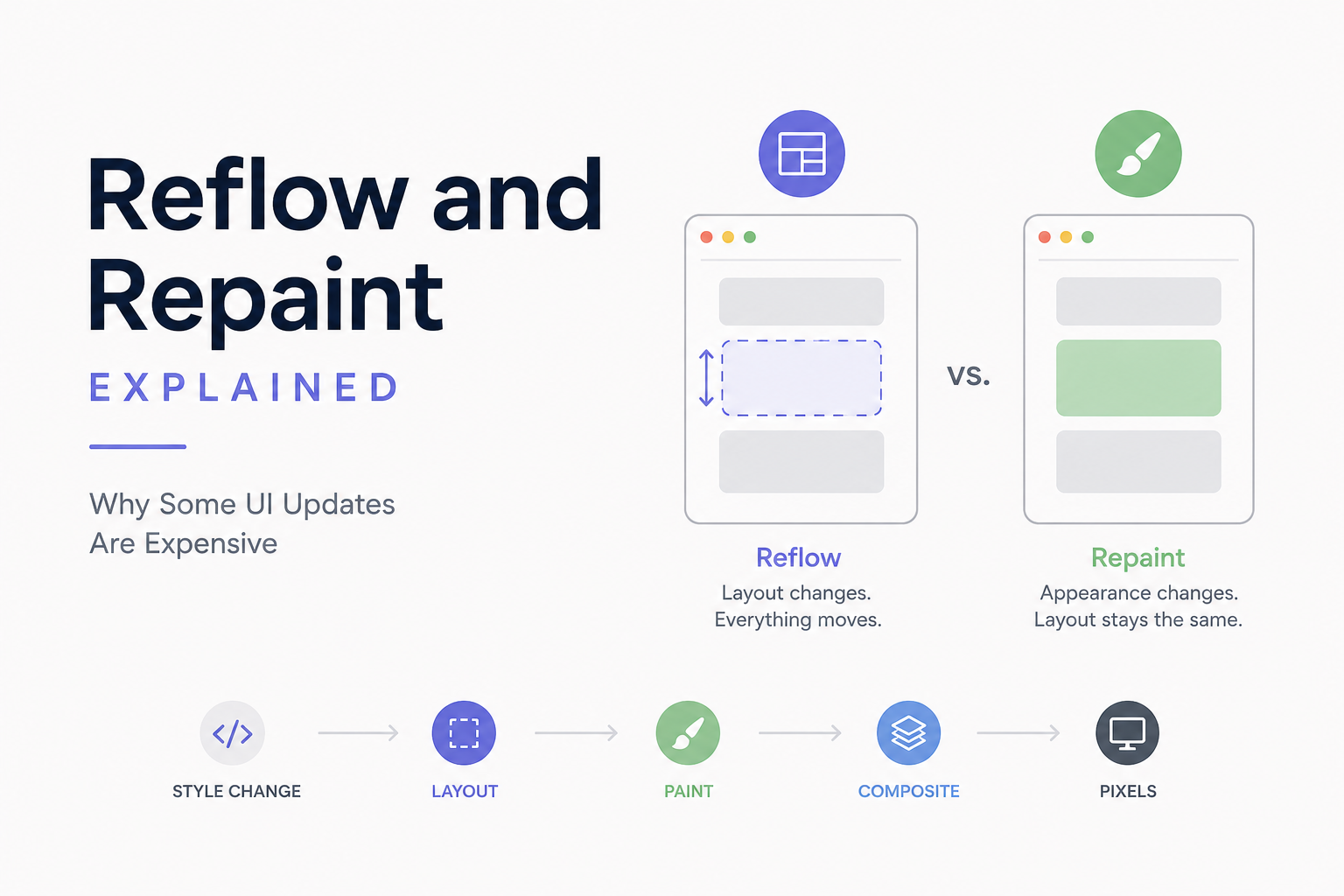
“Changing one CSS property can be almost free. Changing another can force the browser to recalculate half the page. Understanding why is the difference between guessing at frontend performance and reasoning about it.”
In the previous article in Beyond the UI, we followed a webpage through the browser rendering pipeline. We started with HTML and CSS and eventually arrived at pixels:
1
2
3
4
5
6
7
8
9
10
11
12
13
14
15
16
17
18
HTML ──────► DOM
               │
CSS ───────► CSSOM
               │
               ▼
          Render Tree
               │
               ▼
            Layout
               │
               ▼
             Paint
               │
               ▼
          Compositing
               │
               ▼
             Pixels
That pipeline explains how a page appears for the first time. But modern websites don’t remain still after they’re rendered. A user opens a menu, a notification appears, a modal slides onto the screen, an accordion expands, JavaScript adds another row to a table, an animation moves a card across the page, and a validation message appears underneath a form field. Every one of these interactions changes something the browser has already rendered.
The interesting question is:
How much work does the browser have to repeat when something changes?
The answer depends heavily on what changed. Changing an element’s width may affect the position of everything around it. Changing its background color doesn’t affect its geometry, but the browser still needs to redraw it. Changing its transform may, in favorable circumstances, avoid both layout and painting and require mostly compositing work.
Conceptually, these updates can look very different:
1
2
3
4
5
6
7
8
9
10
11
12
Width Change

Style
  │
  ▼
Layout
  │
  ▼
Paint
  │
  ▼
Composite
Compared with:
1
2
3
4
5
6
7
8
9
Background Change

Style
  │
  ▼
Paint
  │
  ▼
Composite
And sometimes:
1
2
3
4
5
6
Transform / Opacity

Style
  │
  ▼
Composite
These are simplified mental models rather than guarantees, but they reveal something fundamental about frontend performance:
Not all UI updates cost the browser the same amount of work.
To understand why, we need to look more closely at two terms that appear constantly in frontend performance discussions: Reflow and Repaint.
What Is Reflow?
Imagine a simple page containing three cards.
1
2
3
4
5
6
7
8
9
10
11
12
13
14
┌───────────────────────────┐
│ Card A                    │
│ height: 100px             │
└───────────────────────────┘

┌───────────────────────────┐
│ Card B                    │
│ height: 100px             │
└───────────────────────────┘

┌───────────────────────────┐
│ Card C                    │
│ height: 100px             │
└───────────────────────────┘
The browser has already calculated where every card belongs. Then JavaScript changes the height of Card A.
1
2
3
const card = document.querySelector(".card-a");

card.style.height = "300px";
Card A can no longer occupy the same amount of space. That means Card B must move, and Card C must move as well. The browser needs to recalculate the geometry of the affected part of the page.
1
2
3
4
5
6
7
8
9
10
11
12
Before

Card A     y = 0
Card B     y = 120
Card C     y = 240


After Card A grows

Card A     y = 0
Card B     y = 320
Card C     y = 440
That recalculation is commonly called reflow. In modern browser terminology, you’ll also frequently see it called layout. During layout, the browser may need to recalculate things such as:
- Width
- Height
- Position
- Margins
- Padding
- Relationships between parents and children
- Text wrapping
- Available space
The important part is that a layout change isn’t always isolated to the element you modified. One element can influence many others.
Why Reflow Can Become Expensive
Suppose you change the width of a paragraph.
1
2
3
.article {
    width: 600px;
}
Then later:
1
article.style.width = "400px";
The browser doesn’t simply make the rectangle narrower. Text may wrap differently, which changes the paragraph’s height, and everything below the paragraph may move. If the paragraph is inside another container whose height depends on its children, that container may also change, and now its siblings may need new positions. A single modification can ripple through the page.
1
2
3
4
5
6
7
8
9
10
11
12
13
14
15
16
Change width
     │
     ▼
Text wraps differently
     │
     ▼
Element height changes
     │
     ▼
Parent geometry changes
     │
     ▼
Sibling positions change
     │
     ▼
Layout recalculated
On a tiny page, this may take almost no noticeable time. On a large dashboard containing thousands of elements, complex grids, tables, charts, and nested components, repeated layout work can become expensive. This is particularly dangerous when it happens many times during a single animation or interaction.
What Can Trigger Reflow?
Many operations can invalidate layout because they change geometry or influence how elements are positioned. Common examples include modifying:
1
2
3
4
5
6
7
8
9
10
width
height
margin
padding
top
left
right
bottom
font-size
line-height
Adding or removing DOM elements can also require layout.
1
container.appendChild(newElement);
So can changing content.
1
2
title.textContent =
    "This is a much longer title than before";
The new text may wrap differently, changing the size of the element and potentially shifting everything around it. Even resizing the browser window can trigger significant layout work because responsive layouts may need to be recalculated. But writes aren’t the only thing developers need to think about. Sometimes reading information from the DOM can cause performance problems too.
The Surprising Cost of Reading Layout
Consider this code:
1
const width = element.offsetWidth;
It looks harmless. We’re only asking the browser for a number. But imagine the browser already knows that something changed.
1
2
3
element.style.width = "500px";

const width = element.offsetWidth;
The first line modifies layout. However, browsers often delay expensive rendering work until it is actually needed. Then the second line asks:
“What is the element’s width right now?”
The browser cannot answer accurately using the old layout information. It may therefore need to calculate layout immediately before returning the value. Conceptually:
1
2
3
4
5
6
7
8
9
10
11
12
13
Change width
     │
     ▼
Layout becomes invalid
     │
     ▼
Read offsetWidth
     │
     ▼
Browser needs current geometry
     │
     ▼
Forced Layout
This becomes especially problematic when reads and writes are repeatedly mixed together. And that leads us to one of the most notorious frontend performance problems.
Layout Thrashing Explained
Imagine you have 500 elements. You want to increase each one’s width slightly. You write:
1
2
3
4
5
6
7
const items = document.querySelectorAll(".item");

items.forEach(item => {
    const width = item.offsetWidth;

    item.style.width = `${width + 10}px`;
});
At first glance, this looks reasonable. Read the current width, add ten pixels, and move to the next element. But look at the pattern:
1
2
3
4
5
6
7
8
9
10
11
READ
WRITE

READ
WRITE

READ
WRITE

READ
WRITE
After a write, layout may become invalid. The next read asks the browser for current geometry, so the browser may need to calculate layout. Then another write invalidates it again, and another read may force layout again. You can end up with something conceptually similar to:
1
2
3
4
5
6
7
8
9
10
11
12
13
14
15
16
17
18
19
Read
  │
Write
  │
Layout
  │
Read
  │
Write
  │
Layout
  │
Read
  │
Write
  │
Layout
  │
...
This repeated invalidation and recalculation is commonly known as layout thrashing. Instead, you generally want to group reads together and then group writes together.
1
2
3
4
5
6
7
const items = [...document.querySelectorAll(".item")];

const widths = items.map(item => item.offsetWidth);

items.forEach((item, index) => {
    item.style.width = `${widths[index] + 10}px`;
});
Now the pattern becomes:
1
2
3
4
5
6
7
8
9
10
11
READ
READ
READ
READ

     ↓

WRITE
WRITE
WRITE
WRITE
This gives the browser much more opportunity to batch its work. The lesson is broader than this particular example:
Avoid repeatedly switching between reading layout information and modifying layout inside tight loops.
What Is Repaint?
Now imagine a different situation. You don’t change the size or position of an element. You simply change its background.
1
card.style.backgroundColor = "blue";
The card remains in exactly the same place. Its width doesn’t change, its height doesn’t change, and its siblings don’t move. The browser therefore doesn’t necessarily need to recalculate layout. But the card looks different, so the pixels representing it must be updated. This is where repaint comes in. Conceptually:
1
2
3
4
5
6
7
8
9
10
11
12
13
14
15
16
17
18
19
Before

┌─────────────────┐
│                 │
│   Gray Card     │
│                 │
└─────────────────┘

       ↓

background-color changes

       ↓

┌─────────────────┐
│                 │
│   Blue Card     │
│                 │
└─────────────────┘
The geometry hasn’t changed. The appearance has. The browser needs to paint the affected visual content again.
Reflow vs Repaint
This distinction is worth making clear. A reflow deals primarily with geometry. A repaint deals primarily with appearance. Consider these two updates.
1
element.style.width = "500px";
and:
1
element.style.backgroundColor = "red";
The first can affect layout. The second generally doesn’t. A simplified comparison looks like this:
| Change | Layout | Paint | Composite |
|---|---|---|---|
width |
Usually | Usually | Usually |
height |
Usually | Usually | Usually |
padding |
Usually | Usually | Usually |
font-size |
Usually | Usually | Usually |
background-color |
No layout in typical cases | Usually | Usually |
box-shadow |
No layout in typical cases | Usually | Usually |
transform |
Often avoidable | Often avoidable | Often |
opacity |
Often avoidable | Often avoidable | Often |
This table is intentionally simplified. Browser engines are highly optimized, and exactly what gets recalculated depends on the page, browser, element, layer structure, and other factors. The useful mental model is the hierarchy:
1
2
3
4
5
6
7
Layout
  │
  ▼
Paint
  │
  ▼
Composite
If you invalidate layout, later stages may also need work. If you only invalidate paint, layout may be avoided. If an update can be handled during compositing, both layout and painting may sometimes be avoided. This is why avoiding unnecessary layout work can be so valuable.
Compositing: The Cheaper Path
Suppose you want to animate a card from left to right. One approach is changing left.
1
2
3
4
.card {
    position: absolute;
    left: 0;
}
Then:
1
card.style.left = "300px";
Because left participates in positioning, changing it can require layout work. Now consider:
1
card.style.transform = "translateX(300px)";
A transform changes how the already-rendered element is presented. In many situations, browsers can handle transforms efficiently during compositing, particularly when the element is on its own composited layer. The difference can look conceptually like this:
1
2
3
4
5
6
7
8
9
10
11
12
Animating left

JavaScript
    │
    ▼
Layout
    │
    ▼
Paint
    │
    ▼
Composite
versus:
1
2
3
4
5
6
Animating transform

JavaScript
    │
    ▼
Composite
This is why transform and opacity are commonly recommended for animations. For example:
1
2
3
4
5
6
7
8
9
10
11
12
13
.modal {
    opacity: 0;
    transform: translateY(20px);

    transition:
        opacity 200ms ease,
        transform 200ms ease;
}

.modal.open {
    opacity: 1;
    transform: translateY(0);
}
Rather than animating:
1
2
3
4
top
left
width
height
you give the browser a better opportunity to perform the animation without repeatedly recalculating page geometry. But there’s an important warning here.
Don’t Turn “Use Transform” Into Another Rule to Memorize
Frontend performance advice often becomes simplified into statements like:
Always animate
transform.
Or:
transformdoesn’t cause repaint.
Those statements are useful shortcuts, but reality is more nuanced. Browsers make their own decisions about compositing layers. Effects such as filters, clipping, large painted areas, and complex descendants can influence how much work an animation requires. Hardware, browser versions, and the structure of the page matter too.
So instead of memorizing:
transform = fast
remember the deeper idea:
Prefer updates that allow the browser to avoid repeating earlier, more expensive stages of the rendering pipeline.
Then measure what actually happens.
will-change: Useful but Easy to Abuse
CSS provides a property called will-change. For example:
1
2
3
.card {
    will-change: transform;
}
You’re essentially giving the browser a hint:
“This element is likely to change in this way soon.”
The browser may use that information to prepare optimizations ahead of time, potentially including promoting the element to its own compositing layer. That can be useful for animations that are known to be performance-sensitive. But this does not mean you should do this:
1
2
3
* {
    will-change: transform;
}
Compositing layers aren’t free. They consume memory and other resources, and creating unnecessary layers can make performance worse rather than better. will-change should therefore be treated as a targeted optimization, not a default styling strategy.
DOM Updates and Reflow
Another common source of rendering work is repeatedly modifying the DOM. Imagine adding 1,000 rows to a table. A naive implementation might look like:
1
2
3
4
5
6
7
8
9
10
for (let i = 0; i < 1000; i++) {
    const row = document.createElement("tr");

    row.innerHTML = `
        <td>${i}</td>
        <td>Customer ${i}</td>
    `;

    table.appendChild(row);
}
Modern browsers are good at batching work, so this doesn’t automatically mean 1,000 complete reflows. Still, repeatedly touching the live DOM can create unnecessary work, especially when your code also performs layout reads or other operations between writes. One option is constructing the changes away from the live document first.
1
2
3
4
5
6
7
8
9
10
11
12
13
14
const fragment = document.createDocumentFragment();

for (let i = 0; i < 1000; i++) {
    const row = document.createElement("tr");

    row.innerHTML = `
        <td>${i}</td>
        <td>Customer ${i}</td>
    `;

    fragment.appendChild(row);
}

table.appendChild(fragment);
The browser receives the collection of new nodes together. The broader principle is more important than DocumentFragment itself:
Batch related DOM updates where practical instead of constantly alternating between DOM writes and layout-dependent reads.
Modern frameworks often help organize updates for you, but they cannot eliminate poor rendering patterns entirely.
React Doesn’t Make Reflow Disappear
Suppose you’re using React. You write:
1
2
3
4
5
6
7
8
9
function Sidebar({ open }) {
    return (
        <aside
            className={open ? "sidebar open" : "sidebar"}
        >
            Menu
        </aside>
    );
}
React determines what needs to change in the DOM. But after React updates the DOM, the browser still has to render the result. If your CSS says:
1
2
3
4
5
6
7
8
.sidebar {
    width: 0;
    transition: width 300ms;
}

.sidebar.open {
    width: 300px;
}
the browser may need to perform layout repeatedly while that width is being animated. React’s reconciliation algorithm doesn’t remove that cost. The same applies to Vue, Angular, Svelte, Solid, and other frameworks. Frameworks determine what DOM changes should happen. The browser determines how those changes become pixels.
1
2
3
4
5
6
7
8
9
10
11
12
13
14
Application State
       │
       ▼
Framework
       │
       ▼
DOM Update
       │
       ▼
Browser
       │
       ├── Layout?
       ├── Paint?
       └── Composite?
This distinction is important. A highly optimized React component can still produce expensive browser rendering work.
A Real-World Example: Expanding an Accordion
Imagine an FAQ section. When the user clicks a question, the answer expands. A common implementation animates height.
1
2
3
4
5
6
7
8
9
.answer {
    height: 0;
    overflow: hidden;
    transition: height 300ms;
}

.answer.open {
    height: 200px;
}
The animation looks simple. But as the height changes:
1
2
3
4
5
6
7
0px
20px
40px
60px
80px
...
200px
the elements underneath may need to move during each stage. Conceptually:
1
2
3
4
5
6
7
8
9
10
11
12
13
Answer grows
    │
    ▼
Layout changes
    │
    ▼
Content below moves
    │
    ▼
Paint
    │
    ▼
Composite
This doesn’t automatically mean the animation is unacceptable. Sometimes layout animation is exactly what the design requires, and modern devices may handle it perfectly well. Performance engineering isn’t about eliminating every reflow. It’s about avoiding unnecessary or excessive work. That’s an important distinction.
Reflow Is Not the Enemy
After learning about layout performance, it’s easy to become afraid of reflow. Don’t. Browsers are designed to perform layout, and changing layouts is a fundamental part of building interactive webpages. Adding a message to the page, opening a navigation menu, rendering search results, or resizing a responsive application may all require layout, and none of these are inherently bad. The problem arises when we force the browser to repeat expensive work unnecessarily.
This:
1
2
3
4
5
6
7
8
9
10
One user action
      │
      ▼
One coordinated DOM update
      │
      ▼
Layout
      │
      ▼
Paint
is perfectly normal.
This is more concerning:
1
2
3
4
5
6
7
8
9
10
11
12
13
14
15
16
One user action
      │
      ▼
Read
Write
Layout
Read
Write
Layout
Read
Write
Layout
Read
Write
Layout
...
Optimization is usually about reducing redundant work, not eliminating legitimate rendering work.
Measuring Reflow and Repaint
You don’t have to guess whether your page is doing too much rendering work. Modern browsers provide performance profiling tools. In Chrome DevTools, for example, the Performance panel can record what happens during an interaction. You may see work categorized around:
1
2
3
4
5
6
7
Scripting

Rendering / Layout

Painting

Compositing
Suppose clicking a button causes a visible delay. Instead of immediately rewriting your React components, record the interaction. Perhaps JavaScript is the problem, layout takes too long, a huge section of the page is being repainted, or the main thread is busy doing unrelated work. The browser’s profiling tools help answer those questions.
This leads to one of the most useful rules in frontend performance:
Measure before you optimize.
A theoretical optimization that saves 0.2 milliseconds isn’t worth making your code significantly harder to maintain. Focus on bottlenecks users can actually experience.
Practical Ways to Reduce Rendering Work
Once you understand the rendering pipeline, several optimization techniques start to make sense naturally. When animating movement, prefer transform where it achieves the same visual result.
1
transform: translateX(100px);
When fading elements, prefer opacity.
1
opacity: 0;
Avoid repeatedly alternating layout reads and writes. Instead of:
1
READ → WRITE → READ → WRITE
prefer:
1
2
3
4
READ → READ → READ
          │
          ▼
WRITE → WRITE → WRITE
Batch related DOM updates where possible. Avoid unnecessary manipulation of large parts of the DOM. Be cautious with expensive visual effects on large or frequently changing areas. Use will-change only when profiling suggests it is useful. And most importantly, use browser performance tools to confirm where your application is spending time. These aren’t arbitrary “frontend best practices.” Every one of them follows from the same idea:
Give the browser less unnecessary work to do before the next frame must appear.
The 16.7ms Problem
In the previous article, we introduced the idea of the browser’s frame budget. On a 60 Hz display, a new frame is available roughly every:
1
1000ms / 60 ≈ 16.7ms
That doesn’t mean your JavaScript gets the entire 16.7 milliseconds. The browser may also need to perform:
1
2
3
4
5
6
7
8
9
10
11
12
13
JavaScript
     │
     ▼
Style Calculation
     │
     ▼
Layout
     │
     ▼
Paint
     │
     ▼
Composite
If your code triggers repeated layout calculations and expensive paints, the browser may not finish everything before the next frame is due. A frame gets missed, then another. The user sees:
1
2
3
4
5
6
7
8
Smooth

● ● ● ● ● ● ● ● ● ●


Janky

● ●   ●     ● ●    ●
This is why rendering performance directly affects how an interface feels. Users don’t know that your page suffered a forced synchronous layout. They simply know that dragging the panel felt sluggish.
Bringing It All Together
Reflow and repaint aren’t mysterious browser behaviors. They’re consequences of how browsers turn changing documents into pixels. When geometry changes, the browser may need to recalculate layout.
1
2
3
4
5
6
7
8
9
10
Change width / height / position
              │
              ▼
            Layout
              │
              ▼
             Paint
              │
              ▼
          Composite
When only appearance changes, layout may be avoided.
1
2
3
4
5
6
7
Change visual property
          │
          ▼
         Paint
          │
          ▼
      Composite
And some changes may be handled primarily during compositing.
1
2
3
4
Transform / Opacity
          │
          ▼
      Composite
Again, these are simplified mental models, not guarantees. But they give us a much better way to reason about frontend performance. Instead of asking:
“Which CSS properties are fast?”
we can ask:
“Which parts of the rendering pipeline does this update require the browser to repeat?”
That’s the question that scales beyond individual tricks.
Final Thoughts
Frontend performance is often taught as a collection of rules: use transform, avoid changing width, don’t touch the DOM too much, use requestAnimationFrame, and avoid forced layouts. Those recommendations can be useful, but memorizing them without understanding the browser makes them fragile. Once you understand reflow and repaint, the rules start explaining themselves. Changing geometry can require layout. Changing appearance can require painting. Some visual changes can be handled efficiently during compositing. Repeatedly forcing the browser backwards through that pipeline can consume the limited time available for each frame.
The goal isn’t to build an application that never triggers reflow or repaint. That’s unrealistic. The goal is to make those operations intentional rather than accidental. And perhaps the most dangerous accidental performance problem is one we’ve already encountered in this article: JavaScript asks the browser for information, changes something, asks for more information, changes something again, and continues doing this while the browser desperately tries to keep its layout up to date.
To understand why that happens, we need to understand how JavaScript itself gets scheduled.
What’s Next?
In the next article in Beyond the UI, we’ll move from rendering into JavaScript execution:
The JavaScript Event Loop Explained: Why Your UI Freezes
We’ll explore the call stack, Web APIs, tasks, microtasks, promises, timers, and requestAnimationFrame, and see why an innocent-looking piece of JavaScript can prevent an entire interface from responding. Because sometimes your UI isn’t slow because the browser is painting too much. Sometimes the browser simply doesn’t get a chance to paint at all.