Beyond the UI: Understanding Modern Frontend Engineering · Part 3
New to this series? Start with Part 1
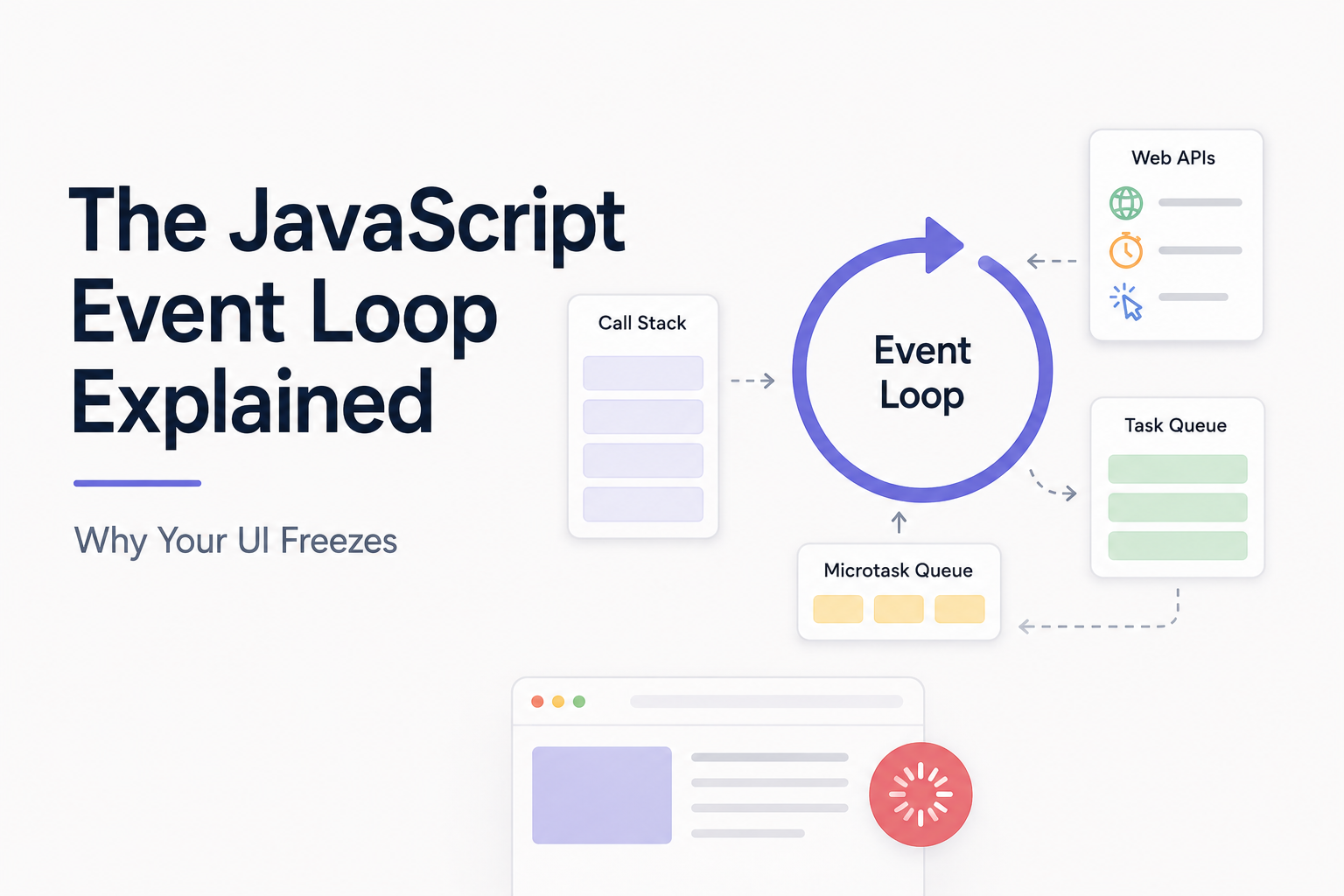
The JavaScript Event Loop Explained: Why Your UI Freezes
“Your browser isn’t frozen because JavaScript stopped working. Sometimes it’s frozen because JavaScript won’t stop working long enough for the browser to do anything else.”
In the previous articles in Beyond the UI, we followed the browser rendering pipeline from HTML to pixels and explored why reflow and repaint can make certain UI updates expensive. But there’s another reason an interface can feel slow even when rendering itself isn’t particularly complicated: JavaScript.
Consider this button:
1
2
3
<button id="generate">
    Generate Report
</button>
When clicked, it performs some expensive work.
1
2
3
4
5
document
    .querySelector("#generate")
    .addEventListener("click", () => {
        performExpensiveCalculation();
    });
The user clicks the button, and suddenly everything stops. The button doesn’t respond visually, animations freeze, scrolling becomes unresponsive, and other clicks don’t work. Even a loading spinner you tried to display may refuse to appear. Then, a few seconds later, everything suddenly comes back to life.
What happened? The browser didn’t crash, the network wasn’t necessarily slow, and the rendering pipeline wasn’t necessarily doing too much work. The problem was that JavaScript occupied the browser’s main thread for too long.
To understand why that freezes the interface, we need to understand one of the most important concepts in JavaScript:
The Event Loop
At a high level, JavaScript execution in the browser involves several moving parts:
1
2
3
4
5
6
7
8
9
10
11
12
13
14
15
JavaScript Code
      │
      ▼
  Call Stack
      │
      ▼
Browser / Web APIs
      │
      ▼
 Task Queues
      │
      ▼
  Event Loop
      │
      └────────────► Call Stack
But that diagram hides some important details. There are tasks, microtasks, timers, promises, and rendering, and all of them need opportunities to run. Let’s unpack what actually happens.
JavaScript Is Single-Threaded
One of the first things developers learn about JavaScript is that it is single-threaded. At least from the perspective of normal JavaScript execution on the browser’s main thread, only one piece of JavaScript executes at a time.
Consider:
1
2
3
console.log("One");
console.log("Two");
console.log("Three");
The result is predictable:
1
2
3
One
Two
Three
JavaScript doesn’t normally execute all three statements simultaneously. Instead, execution happens one operation at a time. You can think of it like a single cashier serving customers.
1
2
3
4
5
6
7
8
9
10
11
Customer A
    │
    ▼
┌──────────┐
│ Cashier  │
└──────────┘
    ▲
    │
Customer B
    │
Customer C
The cashier can serve only one customer at a time. If Customer A takes ten minutes, Customers B and C wait.
The same basic problem exists with JavaScript. If one function takes five seconds to complete, other JavaScript can’t run on that thread during those five seconds. More importantly, much of the browser’s UI work also depends on the main thread getting time to operate. That is where freezing begins.
The Call Stack
JavaScript keeps track of currently executing functions using something called the call stack.
Consider:
1
2
3
4
5
6
7
8
9
function greet() {
    console.log("Hello");
}

function start() {
    greet();
}

start();
Execution begins with start(). Conceptually:
1
2
3
4
5
Call Stack

┌──────────────┐
│   start()    │
└──────────────┘
start() calls greet(). Now:
1
2
3
4
5
6
7
Call Stack

┌──────────────┐
│   greet()    │
├──────────────┤
│   start()    │
└──────────────┘
greet() runs and finishes, then leaves the stack.
1
2
3
┌──────────────┐
│   start()    │
└──────────────┘
Then start() finishes, and the stack becomes empty.
1
2
3
Call Stack

     empty
This matters because queued asynchronous work cannot simply interrupt JavaScript that is already executing. The event loop generally waits for the current task to finish and the call stack to become available before scheduling more work.
So How Does Asynchronous JavaScript Work?
This creates an obvious question: if JavaScript executes one thing at a time, how can this work?
1
2
3
setTimeout(() => {
    console.log("Finished");
}, 2000);
Surely JavaScript doesn’t sit on the call stack for two seconds doing nothing. It doesn’t. The browser provides capabilities outside the JavaScript engine that can handle operations such as timers, networking, and user events. We often refer to these capabilities collectively as Web APIs or browser APIs.
Conceptually:
1
2
3
4
5
6
7
8
9
JavaScript
    │
    │ setTimeout(...)
    ▼
Browser Timer
    │
    │ waits independently
    ▼
Callback becomes eligible
JavaScript registers the timer and continues executing. The browser tracks the timer. Once the timer expires, its callback becomes eligible to run later.
That distinction is important. The callback doesn’t necessarily run immediately when the timer expires. It has to wait until JavaScript is able to execute it.
Why setTimeout(..., 0) Doesn’t Mean Immediately
Consider:
1
2
3
4
5
6
7
console.log("A");

setTimeout(() => {
    console.log("B");
}, 0);

console.log("C");
Some developers initially expect:
1
2
3
A
B
C
But the result is:
1
2
3
A
C
B
Why? Because setTimeout(..., 0) doesn’t mean:
Run this function immediately.
It means something closer to:
After at least the timer delay and once scheduling permits, make this callback available to run as a future task.
So execution looks roughly like:
1
2
3
4
5
6
7
8
9
10
11
12
13
14
15
16
console.log("A")
        │
        ▼
Register timer
        │
        ▼
console.log("C")
        │
        ▼
Current task finishes
        │
        ▼
Timer callback can run
        │
        ▼
console.log("B")
The timer delay controls when the callback becomes eligible. It doesn’t guarantee exactly when it executes. If the main thread is busy, it may execute much later.
Tasks and the Task Queue
When asynchronous work becomes ready, the browser needs somewhere to keep track of it until JavaScript can execute it. One important category of queued work is commonly called tasks. You may also hear the older term macrotasks.
Examples include work associated with things such as:
- Timer callbacks
- User interactions
- Message events
- Certain browser events
Conceptually:
1
2
3
4
5
6
7
8
9
Task Queue

┌─────────────────────────┐
│ click callback          │
├─────────────────────────┤
│ setTimeout callback     │
├─────────────────────────┤
│ message callback        │
└─────────────────────────┘
The event loop coordinates when this queued work gets an opportunity to execute. A simplified model is:
1
2
3
4
5
6
7
8
9
10
11
Is JavaScript currently running?
          │
     ┌────┴────┐
     │         │
    Yes        No
     │         │
    Wait       ▼
          Take eligible task
               │
               ▼
          Execute JavaScript
But this is still incomplete, because JavaScript has another important queue.
Enter Microtasks
Promises introduce another category of work called microtasks. Consider:
1
2
3
4
5
6
7
console.log("A");

Promise.resolve().then(() => {
    console.log("B");
});

console.log("C");
The result is:
1
2
3
A
C
B
That looks similar to setTimeout. But now watch what happens when we combine them.
1
2
3
4
5
6
7
8
9
10
11
console.log("A");

setTimeout(() => {
    console.log("B");
}, 0);

Promise.resolve().then(() => {
    console.log("C");
});

console.log("D");
The output is:
1
2
3
4
A
D
C
B
Why does the promise callback run before the timer? Because promise reactions are scheduled as microtasks, while the timer callback is scheduled as a later task. After the current JavaScript task finishes, the browser drains the microtask queue before moving on to the next task.
A simplified ordering looks like:
1
2
3
4
5
6
7
8
9
10
11
12
13
14
15
16
Current Task
     │
     ▼
JavaScript executes
     │
     ▼
Current stack finishes
     │
     ▼
Drain Microtasks
     │
     ▼
Rendering may get an opportunity
     │
     ▼
Next Task
So in our example:
1
2
3
4
5
6
7
8
9
10
11
12
13
14
15
16
17
18
19
20
A
│
├── Timer scheduled ──────────────► Task Queue
│
├── Promise callback ─────────────► Microtask Queue
│
D
│
▼
Current task ends
│
▼
Microtasks
│
└── C
│
▼
Later task
│
└── B
This distinction between tasks and microtasks explains a surprising amount of JavaScript behavior.
What Creates Microtasks?
Common sources include:
1
Promise.resolve().then(...)
and code after an awaited promise:
1
2
3
4
5
async function load() {
    await fetchData();

    console.log("Finished");
}
The continuation after await eventually resumes through promise machinery and is scheduled as a microtask when the awaited promise settles.
Another browser API is:
1
2
3
queueMicrotask(() => {
    console.log("Microtask");
});
These are useful tools, but microtasks have an important characteristic that can become dangerous:
The browser drains the microtask queue before moving on.
Microtask Starvation
Consider:
1
2
3
4
5
function repeat() {
    queueMicrotask(repeat);
}

repeat();
Each microtask creates another microtask.
The browser finishes one:
1
Microtask 1
but another already exists:
1
Microtask 2
which creates:
1
Microtask 3
and so on.
Conceptually:
1
2
3
4
5
6
7
8
9
10
11
12
13
14
15
16
Task finishes
     │
     ▼
Microtask
     │
     ▼
Creates Microtask
     │
     ▼
Microtask
     │
     ▼
Creates Microtask
     │
     ▼
...
If this continues indefinitely, the browser may struggle to move on to other work. This is called starvation.
Promises are asynchronous, but that doesn’t automatically mean promise-heavy code can never block responsiveness. “Asynchronous” and “runs on another thread” are not the same thing. That’s an important distinction.
Why Your UI Freezes
Now we can finally return to our original problem. Suppose the user clicks a button and you run:
1
2
3
4
5
6
7
8
9
button.addEventListener("click", () => {
    let total = 0;

    for (let i = 0; i < 5_000_000_000; i++) {
        total += i;
    }

    result.textContent = total;
});
Once that click handler begins executing, the main thread is occupied.
Conceptually:
1
2
3
4
5
6
7
8
9
10
11
12
13
Main Thread

Click Handler
     │
     ▼
Huge Loop
     │
     │
     │  3 seconds
     │
     │
     ▼
Finished
During that time, the browser may have other work waiting.
1
2
3
4
5
6
7
8
9
10
11
12
13
14
15
16
17
User scroll
      │
      ├─────────────┐
Button click        │
      │             │
Animation frame     │
      │             ▼
      └──────► WAITING

         Main Thread

      ┌───────────────┐
      │ Expensive JS  │
      │ Expensive JS  │
      │ Expensive JS  │
      │ Expensive JS  │
      └───────────────┘
The page appears frozen because JavaScript isn’t giving the browser enough opportunity to process interactions and produce frames. This is known as a long task.
The Loading Spinner That Never Spins
Here’s a classic example. You want to show a loading state before performing expensive work.
1
2
3
4
5
6
7
button.addEventListener("click", () => {
    spinner.style.display = "block";

    performExpensiveCalculation();

    spinner.style.display = "none";
});
Logically, this seems correct: show the spinner, do the work, then hide the spinner. But the user may never see the spinner. Why?
Changing:
1
spinner.style.display = "block";
updates the DOM/style state, but the browser doesn’t necessarily paint the screen immediately after that line. Your JavaScript continues running.
1
2
3
4
5
6
7
8
9
10
11
12
13
Show spinner
     │
     ▼
Expensive JavaScript
     │
     ▼
Hide spinner
     │
     ▼
Task finishes
     │
     ▼
Browser finally gets chance to render
By the time rendering gets an opportunity, the spinner has already been hidden again. From the user’s perspective, it never appeared.
This connects directly to what we learned in the previous articles:
JavaScript execution and rendering must cooperate on the main thread.
Understanding the rendering pipeline alone isn’t enough. We also need to understand when the browser gets an opportunity to run it.
Rendering and the Event Loop
The browser’s actual scheduling model is sophisticated, and different kinds of work are coordinated according to browser rules. But a useful mental model is:
1
2
3
4
5
6
7
8
9
10
11
12
13
14
15
16
17
┌─────────────────────────────┐
│ Execute a Task              │
└──────────────┬──────────────┘
               │
               ▼
┌─────────────────────────────┐
│ Drain Microtasks            │
└──────────────┬──────────────┘
               │
               ▼
┌─────────────────────────────┐
│ Rendering opportunity       │
│ if needed / appropriate     │
└──────────────┬──────────────┘
               │
               ▼
          Next iteration
The key idea is that the browser generally cannot just paint halfway through your long-running synchronous JavaScript function. Your code needs to yield control.
Breaking Expensive Work Into Smaller Pieces
Suppose we need to process one million records. Instead of:
1
2
3
4
5
function processRecords(records) {
    for (const record of records) {
        expensiveOperation(record);
    }
}
we could process them in chunks.
1
2
3
4
5
6
7
8
9
10
11
12
13
14
15
16
17
18
function processInChunks(records) {
    let index = 0;

    function processChunk() {
        const end = Math.min(index + 1000, records.length);

        while (index < end) {
            expensiveOperation(records[index]);
            index++;
        }

        if (index < records.length) {
            setTimeout(processChunk, 0);
        }
    }

    processChunk();
}
Instead of one giant task:
1
2
3
┌──────────────────────────────────────────────┐
│              3000ms JavaScript              │
└──────────────────────────────────────────────┘
we create smaller pieces:
1
2
3
4
5
JS     Browser     JS     Browser     JS
│         │         │         │        │
▼         ▼         ▼         ▼        ▼

20ms     work      20ms      work     20ms
The total computation may not become dramatically smaller. But responsiveness can improve because the browser gets opportunities to process other work between chunks.
This demonstrates a critical performance principle:
Sometimes making an application feel faster isn’t about doing less work. It’s about scheduling the work more intelligently.
What About async and await?
A common misconception is that adding async automatically moves expensive work away from the main thread. It doesn’t.
Consider:
1
2
3
4
5
6
7
8
9
async function calculate() {
    let total = 0;

    for (let i = 0; i < 5_000_000_000; i++) {
        total += i;
    }

    return total;
}
Calling:
1
await calculate();
doesn’t magically make that loop execute on another thread. The synchronous work inside calculate() still runs on the JavaScript thread. async changes how promises and continuations are handled. It doesn’t transform CPU-heavy JavaScript into background work.
This:
1
2
3
4
5
async function freezeUI() {
    while (true) {
        // expensive synchronous work
    }
}
will still freeze your interface. async is not a synonym for parallel.
setTimeout Isn’t a Background Thread Either
The same misunderstanding often happens with:
1
2
3
setTimeout(() => {
    performExpensiveCalculation();
}, 0);
This doesn’t move the expensive calculation to another thread. It simply schedules the callback to execute as a future task. When that callback eventually runs, the expensive calculation still occupies the main JavaScript thread.
1
2
3
4
5
6
7
8
9
10
11
12
13
14
15
16
Current Task
     │
     ▼
setTimeout scheduled
     │
     ▼
Current Task finishes
     │
     ▼
Timer Task starts
     │
     ▼
EXPENSIVE WORK
     │
     ▼
UI freezes
You’ve delayed the problem. You haven’t removed it. Chunking can help because each task is smaller, but truly CPU-intensive work may need a different solution.
Web Workers: Actually Moving Work Off the Main Thread
Browsers provide Web Workers for running JavaScript in a background thread separate from the main UI thread. Suppose you need to perform a large calculation. Instead of:
1
const result = expensiveCalculation(data);
you can create a worker.
1
2
3
4
5
6
7
const worker = new Worker("worker.js");

worker.postMessage(data);

worker.onmessage = event => {
    console.log("Result:", event.data);
};
Inside worker.js:
1
2
3
4
5
self.onmessage = event => {
    const result = expensiveCalculation(event.data);

    self.postMessage(result);
};
Now the architecture looks more like:
1
2
3
4
5
6
7
8
9
10
11
12
13
14
15
16
Main Thread                      Worker

UI
 │
 ├── User interactions
 │
 ├── Rendering
 │
 └── Send data ────────────────► Expensive calculation
                                      │
                                      │
                                      ▼
 Result received ◄──────────────── Result
 │
 ▼
Update UI
The expensive computation no longer needs to monopolize the main thread. The interface can remain responsive while the worker performs the calculation.
Workers aren’t appropriate for everything. There is communication overhead, data may need to be copied or transferred, and workers don’t directly manipulate the DOM. But for genuinely CPU-heavy operations, they can be extremely valuable.
requestAnimationFrame
Now suppose your JavaScript isn’t performing a large calculation. Instead, you’re animating something. You could write:
1
2
3
setInterval(() => {
    moveElement();
}, 16);
But the browser provides a better mechanism specifically for visual updates:
1
2
3
requestAnimationFrame(() => {
    moveElement();
});
requestAnimationFrame tells the browser:
“I want to perform work before an upcoming repaint.”
A typical animation looks like:
1
2
3
4
5
6
7
8
9
10
11
12
let position = 0;

function animate() {
    position += 2;

    element.style.transform =
        `translateX(${position}px)`;

    requestAnimationFrame(animate);
}

requestAnimationFrame(animate);
Conceptually:
1
2
3
4
5
6
7
8
9
10
11
12
Frame
 │
 ├── requestAnimationFrame callback
 │
 ├── Style / Layout
 │
 ├── Paint
 │
 └── Composite
 │
 ▼
Next Frame
This allows your visual updates to align more naturally with the browser’s rendering cycle. It doesn’t mean you can perform unlimited work inside the callback. If your callback takes 100 milliseconds, you’ll still miss frames. requestAnimationFrame gives you appropriate timing. It doesn’t give you unlimited processing power.
Tasks vs Microtasks vs Animation Frames
At this point, we have several scheduling mechanisms. A simplified comparison is useful.
| Mechanism | Typical Use |
|---|---|
setTimeout |
Schedule future task |
Promise .then() |
Promise continuation / microtask |
queueMicrotask() |
Explicit microtask |
requestAnimationFrame() |
Work tied to an upcoming visual frame |
| Web Worker | CPU-heavy work away from main UI thread |
These mechanisms aren’t interchangeable. For example, using a chain of promises to split heavy work may not provide the rendering opportunities you expect because microtasks are drained before the browser moves on.
Consider:
1
2
3
4
5
function process() {
    Promise.resolve().then(process);
}

process();
This can continually populate the microtask queue. If your goal is to yield so the browser can render, continuously scheduling microtasks may be exactly the wrong strategy. Understanding which queue your work enters matters.
A Practical Example: Processing a Large Dataset
Suppose a dashboard receives 100,000 records and needs to calculate statistics. The naive approach:
1
2
3
4
5
button.addEventListener("click", () => {
    const result = calculateStatistics(records);

    renderResults(result);
});
If the calculation takes two seconds:
1
2
3
4
5
6
7
8
9
Click
 │
 ▼
Calculate Statistics
 │
 │ 2 seconds
 │
 ▼
Render Results
the UI may become unresponsive. One option is chunking:
1
2
3
4
5
6
7
8
9
10
11
12
13
Chunk 1
   │
   ▼
Yield
   │
   ▼
Chunk 2
   │
   ▼
Yield
   │
   ▼
Chunk 3
Another option, particularly for CPU-heavy computation, is a worker:
1
2
3
4
5
6
7
8
9
                    ┌──────────────────┐
Records ───────────►│    Web Worker    │
                    │                  │
UI remains          │ Calculate stats  │
responsive          │                  │
                    └────────┬─────────┘
                             │
                             ▼
                           Result
The right approach depends on the workload. But both are better than assuming async will solve the problem automatically.
Long Tasks and the 16.7ms Frame Budget
In the previous articles, we discussed the frame budget. On a 60 Hz display, the browser gets a new frame opportunity roughly every:
1
1000ms / 60 ≈ 16.7ms
Now imagine JavaScript runs for 200 milliseconds.
1
2
3
4
5
6
7
8
Frame budget

|----16.7ms----|

JavaScript

|----------------------------------------------------|
                       200ms
Several potential frame opportunities pass while JavaScript is still executing. Animations stop updating smoothly, interactions feel delayed, and the page becomes janky.
This is why long-running JavaScript matters even when the total amount of computation seems reasonable. Users experience responsiveness in small windows of time. A two-second calculation that completely blocks the interface feels much worse than work that can be performed without preventing interaction.
The Event Loop Explains Delayed Clicks Too
Freezing isn’t always dramatic. Sometimes the interface simply feels slightly sluggish.
Suppose the main thread is busy for 300 milliseconds. During that period, the user clicks a button. The click doesn’t disappear. It can wait until the browser is able to process the relevant event and run its handler.
Conceptually:
1
2
3
4
5
6
7
8
9
10
11
12
13
User clicks
     │
     ▼
Event waiting
     │
     │
     │ Main thread busy
     │
     ▼
JavaScript finishes
     │
     ▼
Click handler runs
From the user’s perspective:
“I clicked the button and nothing happened.”
Then, a fraction of a second later, the interface responds. This is one reason JavaScript performance directly affects interaction responsiveness. It’s also why modern web performance metrics care about how quickly pages respond to user interactions, not merely how quickly they initially load.
Frameworks Still Depend on the Event Loop
Just as React cannot bypass the browser rendering pipeline, frameworks cannot bypass JavaScript scheduling.
Consider:
1
2
3
4
5
6
7
8
9
10
11
12
function App() {
    const handleClick = () => {
        performHugeCalculation();
        setResult("Finished");
    };

    return (
        <button onClick={handleClick}>
            Calculate
        </button>
    );
}
React can optimize how updates are reconciled. But if performHugeCalculation() occupies the main thread for three seconds, React cannot magically make the browser responsive during that synchronous work. The same principle applies to Vue, Angular, Svelte, Solid, and every other browser-based framework.
Eventually:
1
2
3
4
5
6
7
8
9
10
11
12
13
14
15
16
Framework Event Handler
          │
          ▼
      JavaScript
          │
          ▼
     Main Thread
          │
     ┌────┴─────┐
     │          │
Long work    Short work
     │          │
     ▼          ▼
UI blocked   Browser gets
             opportunities
             to continue
Understanding the event loop is therefore framework-independent knowledge.
Common Event Loop Mistakes
Several bugs and performance problems become easier to recognize once you understand scheduling. One is assuming this executes immediately:
1
setTimeout(callback, 0);
It doesn’t. Another is assuming this moves CPU work off the main thread:
1
2
3
async function work() {
    expensiveCalculation();
}
It doesn’t. Another is creating enormous promise or microtask chains and assuming that because they’re asynchronous, rendering will happen between each one. That isn’t necessarily true.
And perhaps the most common mistake is simply doing too much synchronous work inside event handlers.
1
2
3
4
5
6
7
button.addEventListener("click", () => {
    parseHugeFile();
    calculateStatistics();
    transformRecords();
    generateReport();
    updateDashboard();
});
Each individual function may look reasonable. Together, they can monopolize the main thread.
How to Keep the UI Responsive
The goal isn’t to avoid JavaScript. It’s to cooperate with the browser.
For large amounts of work, consider breaking processing into smaller chunks so the browser gets opportunities to handle other tasks. For CPU-heavy work that doesn’t need DOM access, consider Web Workers. For visual updates, use requestAnimationFrame where appropriate. Avoid unnecessarily long synchronous event handlers. Be careful about creating endless microtask chains.
And most importantly, measure. Browser developer tools can show long tasks, scripting time, rendering activity, and frame performance. A slow interface shouldn’t lead immediately to random optimization. First determine whether the bottleneck is:
1
2
3
4
5
6
7
8
9
10
11
12
13
14
15
JavaScript execution?
        │
        ├── Long task?
        ├── Too many calculations?
        └── Excessive framework work?

Rendering?
        │
        ├── Layout?
        ├── Paint?
        └── Compositing?

Network?
        │
        └── Waiting for resources?
Different problems require different solutions.
Putting the Event Loop Together
We can now build a more complete mental model.
1
2
3
4
5
6
7
8
9
10
11
12
13
14
15
16
17
18
19
20
21
22
23
24
25
26
27
28
29
30
31
32
33
34
                 Browser
                    │
       ┌────────────┴─────────────┐
       │                          │
       ▼                          ▼
  Browser APIs               User Events
       │                          │
       └────────────┬─────────────┘
                    │
                    ▼
                Task Queue
                    │
                    ▼
              ┌───────────┐
              │ Event Loop│
              └─────┬─────┘
                    │
                    ▼
               Call Stack
                    │
                    ▼
             JavaScript Runs
                    │
                    ▼
              Task Finishes
                    │
                    ▼
            Drain Microtasks
                    │
                    ▼
         Rendering Opportunity
                    │
                    ▼
               Next Work
Again, the browser’s actual implementation is more sophisticated than this diagram. But as a mental model, it answers many practical questions.
Why doesn’t setTimeout(..., 0) run immediately? Because it has to wait for a future task opportunity.
Why does a promise callback run before that timer? Because microtasks are processed before moving on to the next task.
Why does a giant loop freeze the interface? Because JavaScript occupies the main thread.
Why didn’t your spinner appear before the expensive calculation? Because the browser didn’t get a rendering opportunity.
Why doesn’t async solve CPU-heavy work? Because asynchronous syntax doesn’t automatically mean another thread.
Why can Web Workers help? Because they allow computation to happen away from the main UI thread.
Bringing It All Together
The JavaScript event loop isn’t merely an interview question. It’s the scheduling system behind much of the behavior users experience in web applications.
When JavaScript performs small amounts of work and regularly gives control back to the browser, the interface remains responsive.
1
2
3
4
5
6
7
8
9
10
11
12
13
JavaScript
    │
    ▼
Browser
    │
    ▼
JavaScript
    │
    ▼
Browser
    │
    ▼
JavaScript
But when one task monopolizes the main thread:
1
2
3
4
5
6
7
8
9
10
11
12
JavaScript
    │
    │
    │
    │
    │
    │
    ▼
Finally finishes
    │
    ▼
Browser catches up
everything else has to wait. That’s the heart of the problem.
A responsive frontend isn’t just about writing fast JavaScript. It’s about giving the browser enough opportunities to do everything other than JavaScript.
Final Thoughts
The event loop can seem complicated because several concepts are usually introduced at once: the call stack, Web APIs, tasks, microtasks, promises, timers, rendering, and animation frames. But underneath all of them is a relatively simple idea.
The browser has many responsibilities. It needs to run your JavaScript, respond to users, calculate layouts, paint pixels, animate interfaces, and process network results. And much of that work has to be coordinated around a main thread that can only do so much at once.
If your JavaScript refuses to give that thread back, the browser cannot provide a smooth experience. That’s why the next time your interface freezes, the most useful question may not be:
“Why is this function slow?”
Instead, ask:
“How long am I preventing the browser from doing anything else?”
That question gets much closer to how users actually experience performance.
What’s Next?
So far in Beyond the UI, we’ve looked underneath frontend frameworks at three fundamental browser concepts:
1
2
3
4
5
6
7
Browser Rendering Pipeline
          │
          ▼
Reflow and Repaint
          │
          ▼
JavaScript Event Loop
We now understand how the browser creates pixels, why some visual updates are expensive, and why JavaScript can prevent the UI from responding altogether.
Next, we’ll move one level higher and look at a decision that shapes how modern frontend applications are delivered:
Client-Side Rendering vs Server-Side Rendering Explained: Where Should Your UI Be Built?
We’ll explore CSR, SSR, static generation, the trade-offs between them, what happens from the moment a user requests a page, and why frameworks such as Next.js, Nuxt, and modern meta-frameworks increasingly blur the line between client and server.
Because once you understand how the browser renders, the next question becomes:
How much work should we make the browser do in the first place?